In today's data-driven world, the ability to manipulate and work with Excel spreadsheets programmatically can be a game-changer. Python, a versatile and powerful programming language, offers us the tools we need to automate Excel-related tasks with ease. In this tutorial, we will see a demonstration on how to use Excel sheets in the python using openpyxl.
Setup
Execute below command to install necessary python package.
pip install openpyxlCreate Excel sheet
1# import Workbook
2from openpyxl import Workbook
3
4# create Workbook object
5wb=Workbook()
6
7# set file path
8filepath="/home/ubuntu/demo.xlsx"
9
10# save workbook
11wb.save(filepath)
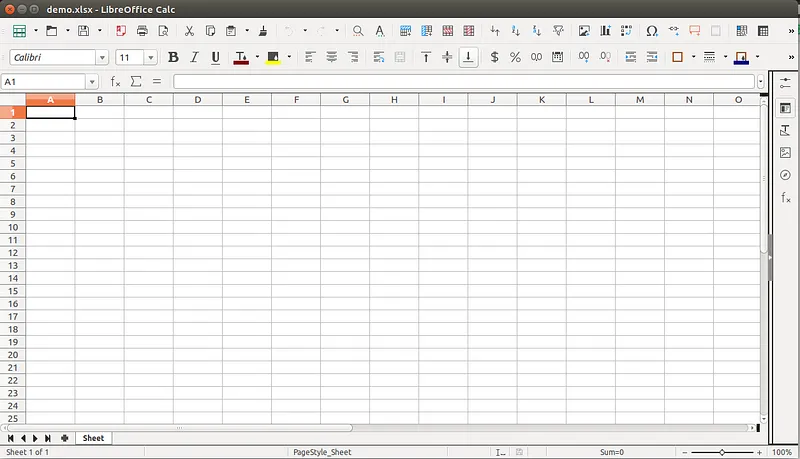
This will create a new excel file demo.xlsx.
Add data to the Excel sheet
Writing to a cell
1# import load_workbook
2from openpyxl import load_workbook
3
4# set file path
5filepath="/home/ubuntu/demo.xlsx"
6
7# load demo.xlsx
8wb=load_workbook(filepath)
9
10# select demo.xlsx
11sheet=wb.active
12
13# set value for cell A1=1
14sheet['A1'] = 1
15
16# set value for cell B2=2
17sheet.cell(row=2, column=2).value = 2
18
19# save workbook
20wb.save(filepath)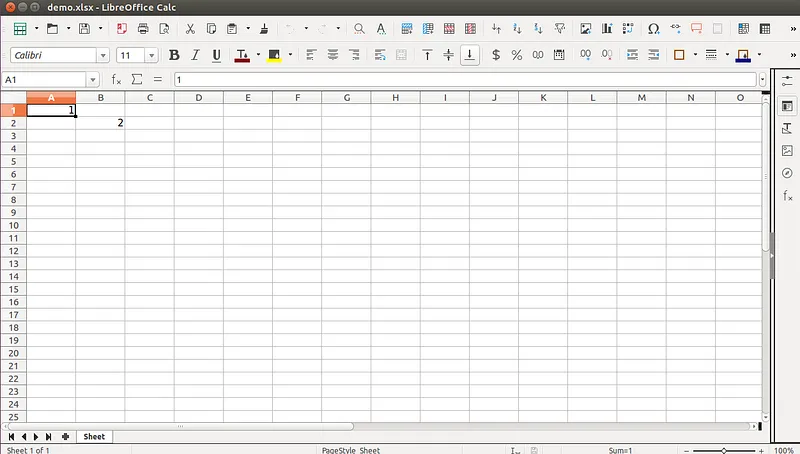
Appending group of values at the bottom of the current sheet
1# import Workbook
2from openpyxl import Workbook
3
4# create Workbook object
5wb=Workbook()
6
7# set file path
8filepath="/home/ubuntu/demo.xlsx"
9
10# select demo.xlsx
11sheet=wb.active
12
13data=[('Id','Name','Marks'),
14      (1,ABC,50),
15      (2,CDE,100)]
16
17# append all rows
18for row in data:
19    sheet.append(row)
20
21# save file
22wb.save(filepath)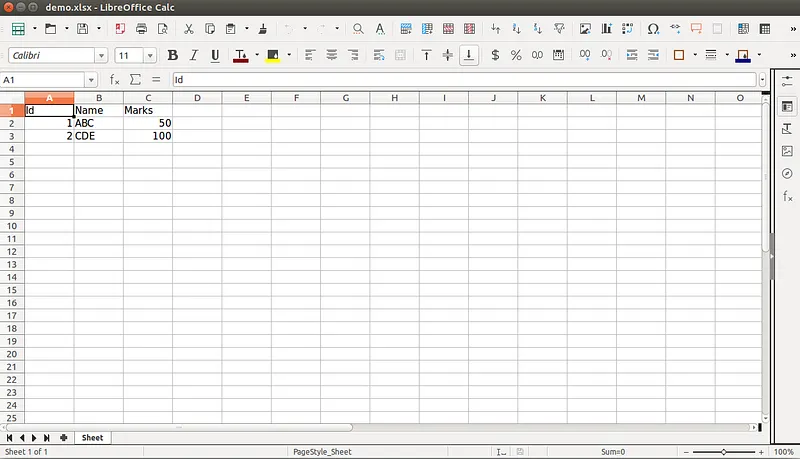
Reading from an Excel sheet
Reading a cell
1# import load_workbook
2from openpyxl import load_workbook
3
4# set file path
5filepath="/home/ubuntu/demo.xlsx"
6
7# load demo.xlsx
8wb=load_workbook(filepath)
9
10# select demo.xlsx
11sheet=wb.active
12
13# get b1 cell value
14b1=sheet['B1']
15
16# get b2 cell value
17b2=sheet['B2']
18
19# get b3 cell value
20b3=sheet.cell(row=3,column=2)
21# print b1, b2 and b3
22print(b1)
23
24print(b2)
25print(b3)
Output of above code:
Name
ABC
DEF
Iterating by rows
1# import load_workbook
2from openpyxl import load_workbook
3
4# set file path
5filepath="/home/ubuntu/demo.xlsx"
6# load demo.xlsx
7wb=load_workbook(filepath)
8
9# select demo.xlsx
10sheet=wb.active
11
12# get max row count
13max_row=sheet.max_row
14
15# get max column count
16max_column=sheet.max_column
17
18# iterate over all cells
19# iterate over all rows
20for i in range(1,max_row+1):
21
22     # iterate over all columns
23     for j in range(1,max_column+1):
24
25          # get particular cell value
26          cell_obj=ws.cell(row=i,column=j)
27
28          # print cell value
29          print(cell_obj.value,end=' | ')
30
31     # print new line
32     print('n')
Output of above code:
Id | Name | Marks |

1 | ABC | 50 |

2 | CDE | 100 |
Add sheet to the existing xlsx
We can add Sheet 2 to demo.xlsx using below code.
1# import load_workbook
2from openpyxl import load_workbook
3
4# set file path
5filepath="/home/ubuntu/demo.xlsx"
6
7# load demo.xlsx
8wb=load_workbook(filepath)
9
10# create new sheet
11wb.create_sheet('Sheet 2')
12
13# save workbook
14wb.save(filepath)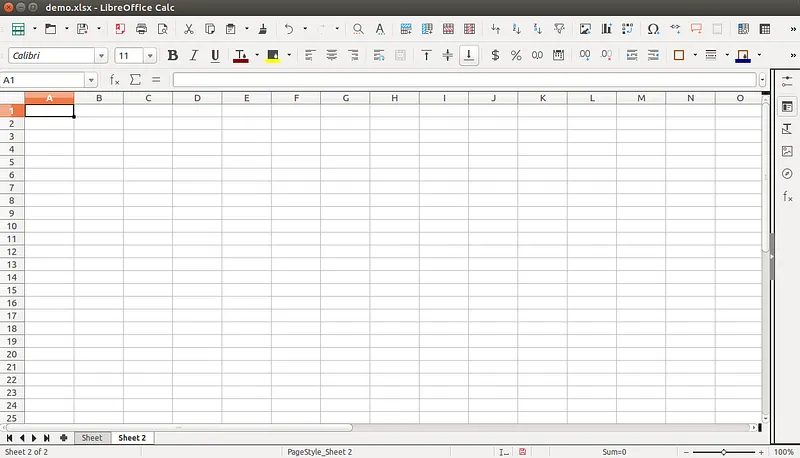
Also read: Tutorial on Django Jenkins Integration for Django Project
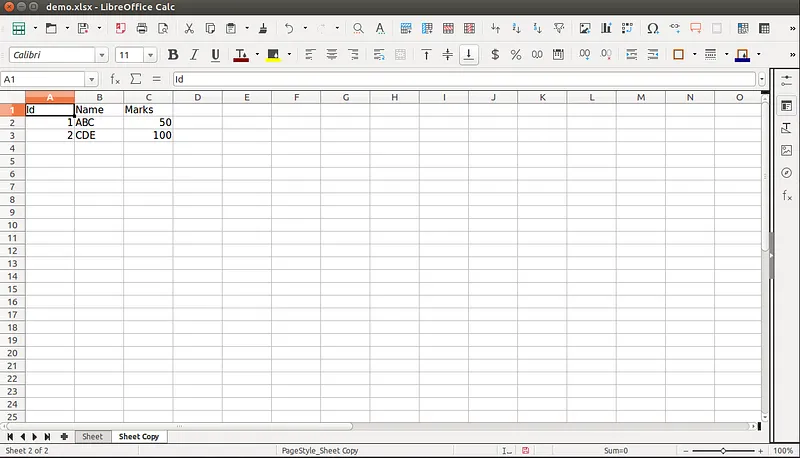
Copy data from one sheet to another sheet
1# import load_workbook
2from openpyxl import load_workbook
3
4# set file path
5filepath="/home/ubuntu/demo.xlsx"
6
7# load demo.xlsx
8wb=load_workbook(filepath)
9
10# get Sheet
11source=wb.get_sheet_by_name('Sheet')
12
13# copy sheet
14target=wb.copy_worksheet(source)
15
16# save workbook
17wb.save(filepath)
From above code create a new sheet with same data as Sheet.
Remove sheet from existing xlsx
We can remove Sheet 2 from the demo.xlsx using below code.
1# import load_workbook
2from openpyxl import load_workbook
3
4# set file path
5filepath="/home/ubuntu/demo.xlsx"
6
7# load demo.xlsx
8wb=load_workbook(filepath)
9
10# create new sheet
11wb.remove(wb.get_sheet_by_name('Sheet 2'))
12
13# save workbook
14wb.save(filepath)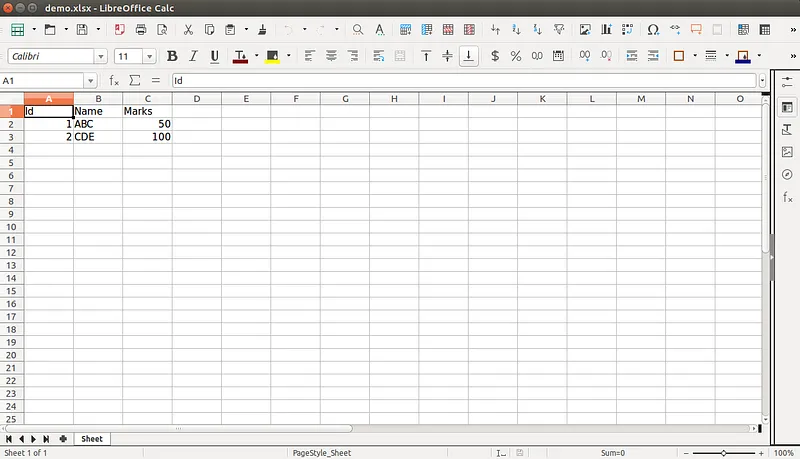
Well, this is it! I hope you liked it.
Working with Excel sheets in Python using openpyxl opens up a world of possibilities for automating data-related tasks. We've explored essential operations such as creating and editing Excel sheets, reading data, and even managing multiple sheets within a single Excel file.
Reference links:
https://openpyxl.readthedocs.io/en/stable/tutorial.html
https://zetcode.com/python/openpyxl/
Also, take a look at this informative blog post on Enhancing Security with Two-Factor Authentication in Django Admin Panel.


Authors

Nensi Trambadiya

More ways to listen


Podcast Transcript